
Instagram has become one of the most visually driven social media platforms, and users are constantly looking for creative ways to customize their experience. One trending search that pops up frequently is how to get black screen on Instagram. This could mean different things depending on what you’re trying to achieve — enabling dark mode for a sleek black interface, creating an all-black Instagram Story, or using a black background trick for aesthetic posts.
In this guide, we’ll break down every method so you can achieve the exact black screen effect you’re looking for, whether it’s for your app interface or your content.
Why Do People Want a Black Screen on Instagram?
There are several reasons users search for this:
- Eye comfort: A black or dark interface reduces eye strain, especially at night.
- Battery saving: On OLED and AMOLED screens, black pixels consume less power.
- Aesthetic appeal: Many influencers and content creators use black backgrounds for a minimalist, moody look.
- Privacy or mystery posts: Some users post a completely black image or video as a teaser or statement post.
- Story customization: Black backgrounds make text, stickers, and highlights stand out more.
Let’s look at each method in detail.
Method 1: Enable Instagram Dark Mode (App-Wide Black Screen)
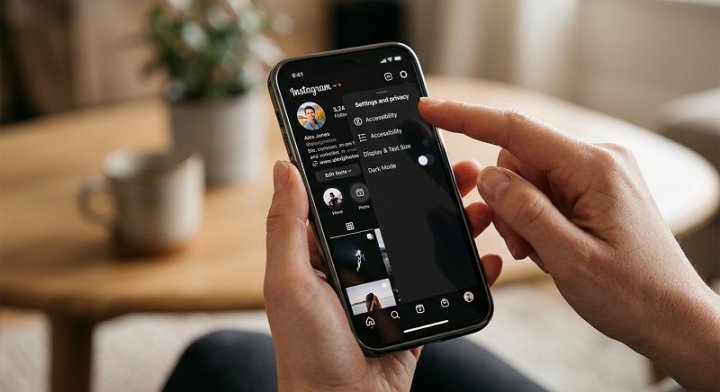
The most common request is to turn the entire Instagram app background black. This is done through Dark Mode, a built-in feature.
On Android:
- Open the Instagram app and go to your profile.
- Tap the three-line menu in the top right corner.
- Select Settings and Privacy.
- Tap Accessibility.
- Under “Theme,” choose Dark.
Alternatively, if your Android device has system-wide dark mode enabled (Settings > Display > Dark Theme), Instagram will often switch automatically since it follows your phone’s default theme.
On iPhone (iOS):
- Go to your iPhone Settings.
- Scroll down and tap Display & Brightness.
- Select Dark mode.
Since Instagram for iOS typically syncs with the system appearance, enabling dark mode on your iPhone will automatically turn Instagram’s background black.
On Desktop (Browser):
Instagram’s web version also supports dark mode on most browsers if your operating system is set to dark theme. If it doesn’t switch automatically, you can use a browser extension like “Dark Reader” to force a black theme on Instagram’s website.
Method 2: Create an All-Black Instagram Story
If you want to post a story with a solid black screen — often used for text overlays, announcements, or aesthetic quotes — follow these steps:
- Open Instagram and swipe right to go to the Story camera.
- Take any photo (even a blurry or dark one), or use a blank image from your gallery.
- Tap the pen/drawing tool at the top.
- Select the black color from the color palette.
- Press and hold your finger on the screen for 2-3 seconds — this fills the entire screen with black color.
- Once the screen is fully black, add text, stickers, or music on top of it.
This trick is widely used by creators to make bold statement posts or highlight important text in a story.
Method 3: Use a Plain Black Image as a Post
If you want to upload a completely black image as a feed post (not just a story):
- Create a black image using any photo editing app (or search for a free “solid black background” image online with reusable/commercial rights).
- Save the image to your phone’s gallery.
- Open Instagram, tap the + icon to create a new post.
- Select the black image from your gallery.
- Add a caption, filters (skip filters if you want pure black), and share.
This method is popular for “blackout” campaigns, minimalist aesthetics, or symbolic posts.
Method 4: Black Screen for Instagram Reels or Videos
For Reels or video content, you may want a black screen intro, outro, or transition:
- Open a video editing app such as CapCut, InShot, or even Instagram’s built-in Reels editor.
- Add a black clip (many apps have a built-in “black screen” or “solid color” option) at the start or end of your video.
- Layer text, captions, or transitions over the black clip.
- Export and upload your Reel to Instagram as usual.
This technique is frequently used for cinematic intros, dramatic reveals, or countdown-style content.
Common Issues and Fixes
- Dark mode not working: Make sure both your Instagram app and phone’s operating system are updated to the latest version.
- Story color pane not filling black: Ensure you’re pressing and holding directly on the drawing canvas, not just tapping once.
- Black image looks gray or has visible pixels: Use a properly rendered pure black (
#000000) image rather than a screenshot, which may introduce compression artifacts.
Tips for a Better Black Aesthetic on Instagram
- Pair black backgrounds with white or neon-colored text for higher contrast and readability.
- Use black-and-white filters consistently across your feed for a cohesive, moody theme.
- Combine black story backgrounds with GIFs or stickers for added visual interest without breaking the aesthetic.
- If you’re branding your profile, consider using black as a consistent element across highlight covers, story templates, and post backgrounds.
Conclusion
Whether you’re aiming to reduce eye strain with dark mode, craft a bold black-background story, or design a minimalist black feed post, Instagram offers multiple ways to achieve a black screen effect. From simple settings changes to creative in-app tricks, these methods work across Android, iPhone, and desktop platforms. Try out the method that best fits your goal, and you’ll have that clean, striking black screen look on Instagram in just a few taps.
