
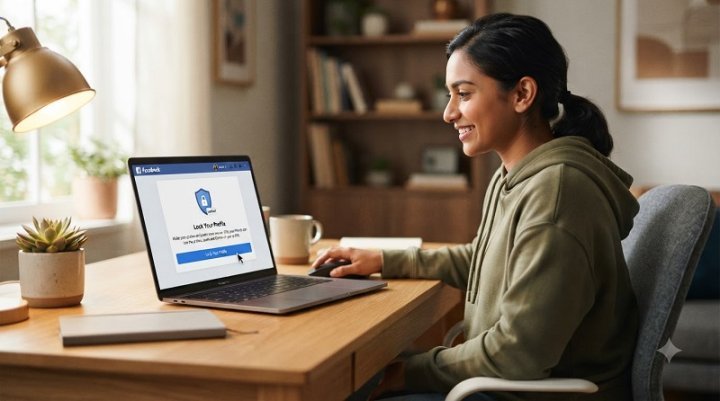
To lock your Facebook profile, open your profile, tap the three-dot menu (⋯), select Lock profile, then tap Lock your profile to confirm. Once locked, only your Facebook friends can see your full-size photos, posts, and most profile details.
If you’ve ever worried about strangers looking through your photos, this guide is for you. It explains what locking does, how to do it on your phone or computer, and what to do if the button doesn’t appear on your account.
What Is the Metaverse? A Complete Guide to the Concept, Technology, and Reality in 2026
What Does It Mean to Lock Your Facebook Profile?
Profile lock is a built-in Facebook privacy feature that tightens your account’s visibility with a single confirmation. Instead of changing a dozen settings one by one, you make one choice, and Facebook applies a set of protections for you.
When your profile is locked:
- Your posts become friends-only. Past public posts switch to “Friends,” and new posts default to the same audience.
- Your photos are protected. People who aren’t your friends can’t enlarge, download, or share your profile picture or cover photo.
- Your profile shows a lock badge. Visitors see a notice that the profile is locked, so they know the content is restricted.
- Tagging gets stricter. Review controls turn on so you can approve posts you’re tagged in before they appear on your profile.
This makes it a popular choice for people who want a more private Facebook account, especially those who have been contacted by strangers or have had photos copied.
Who Can Lock a Facebook Profile?
This is the part most guides skip, so check it before you start.
Profile lock is not available in every country. Facebook rolled it out in selected regions, and it has mostly been associated with countries such as India, Bangladesh, and parts of the Middle East and Africa. It is generally not offered in the United States, for example. Facebook doesn’t always publish a complete country list, and availability can change over time.
A few other conditions apply:
- It works only on personal profiles, not Facebook Pages.
- It may not show if Professional Mode is turned on.
- It may be missing if your app is out of date.
If you can’t see the option, skip ahead to the section on private-profile alternatives below.
How to Lock Your Facebook Profile on Android or iPhone
The steps are nearly identical on both. Menu names can shift slightly between app versions.
- Open the Facebook app and make sure you’re logged in.
- Go to your profile by tapping your profile picture or name.
- Tap the three dots (⋯) next to the “Edit profile” or “Add to story” button.
- Select “Lock profile.” If you don’t see it, the feature may not be available for your account.
- Read the information screen, then tap Lock your profile.
- Tap “OK” or “Done.” A lock icon appears on your profile photo.
How to Lock Your Facebook Profile on a Computer
- Log in to Facebook in your browser.
- Click your profile picture to open your profile.
- Click the three dots (⋯) below your cover photo.
- Choose “Lock profile.”
- Click “Lock your profile” to confirm.
The settings sync across devices, so locking on your phone also applies when you log in on a laptop.
What Strangers Can Still See After You Lock Your Profile
Locking is helpful, but it isn’t invisibility. Here is what to expect:
- Your name and a small profile picture can still appear in search results and friend suggestions.
- Public comments you leave on public Pages, public groups, or other people’s public posts stay visible.
- Anyone can still send you a friend request, unless you change that setting separately.
- Content you shared before may already have been seen, copied, or saved by others.
A locked profile reduces what outsiders can see, but it works best alongside good habits, such as accepting friend requests only from people you know.
How to Unlock Your Facebook Profile
Changed your mind? You can reverse it any time:
- Open your profile.
- Tap or click the three-dot menu (⋯).
- Select Unlock profile and confirm.
Unlocking doesn’t necessarily restore every old post’s original audience, so review your post privacy afterward if it matters to you.
What to Do If the “Lock Profile” Option Isn’t Showing
Try these fixes in order:
- Update the Facebook app from the Play Store or App Store.
- Restart the app, or log out and back in.
- Switch off Professional Mode if it’s enabled on your profile.
- Try a different device or browser, since the option sometimes appears on one platform and not another.
- Check Facebook’s Help Center to see whether profile lock is supported in your region.
If none of this works, the feature likely isn’t available to you yet. The good news is that you can get most of the same protection manually.
How to Make Your Facebook Profile Private Without Profile Lock
You can build a similar level of privacy using Facebook’s standard privacy settings. This works for everyone, in every country.
Step 1: Set your future posts to “Friends.”
Go to Settings & privacy → Settings → Audience and visibility → Posts, then change “Who can see your future posts?” to Friends.
Step 2: Limit your past posts.
In the same section, choose Limit past posts. This changes all your old public posts to friends-only in one go.
Step 3: Hide your friends list.
Under Audience and visibility → How people find and contact you, adjust who can see your friends list.
Step 4: Control who can find you.
Use the same area to limit who can send friend requests and who can look you up by phone number or email.
Step 5: Turn on tag review.
Under Profile and tagging, switch on review for posts you’re tagged in and tags people add to your posts.
Step 6: Check your profile details.
Edit your profile and set the audience for each detail (workplace, school, city, relationship status) to Friends or Only me.
Step 7: Stop search engines from linking to your profile.
In privacy settings, turn off the option allowing search engines outside Facebook to link to your profile.
You can also run Privacy Checkup from the settings menu, which walks you through the main options one screen at a time.
Extra Tips to Keep Your Facebook Account Safe
Privacy settings protect what people see. These habits protect your account itself:
- Turn on two-factor authentication under Accounts Center → Password and security.
- Use a strong, unique password that you don’t reuse on other sites.
- Be selective with friend requests. Fake profiles are a common source of privacy problems.
- Review your friends list occasionally and remove people you don’t recognize.
- Think before posting. Avoid sharing your address, phone number, or travel plans publicly.
Frequently Asked Questions
Is it safe to lock your Facebook profile?
Yes. Profile lock is an official Facebook feature, and it only restricts who can view your content. It doesn’t delete anything or affect your account.
Can someone still see my profile after I lock it?
Non-friends can see limited information, such as your name and a small profile picture, but not your full-size photos, posts, or most personal details.
Does locking my profile hide it from search?
No. People can still find your name in search. They just see far less once they open your profile.
Will my friends know I locked my profile?
Facebook doesn’t send a notification, but friends may notice the lock badge if they visit your profile.
Can I lock a Facebook Page or business account?
No. Profile lock is for personal profiles only. Pages have separate visibility settings.
Why can’t I lock my Facebook profile?
The most common reason is regional availability. Other causes include an outdated app, Professional Mode being on, or the feature being tested in stages.
Can I lock my profile for just some people?
Profile lock is all-or-nothing. For finer control, use the audience settings on individual posts, or use custom friend lists.
Final Thoughts
Learning how to lock your Facebook profile takes about a minute and gives you instant peace of mind, if your account is eligible. If it isn’t, the manual privacy settings above get you most of the way there. Whichever route you take, make it a habit to review your settings every few months, since Facebook updates its menus and options regularly.

One thought on “How to Lock Your Facebook Profile: A Beginner’s Step-by-Step Guide”