
You’re in the middle of something important — an email, a spreadsheet, a movie — and there it is. A thin line, cutting across your display. Maybe it’s black. Maybe it’s a flickering rainbow of colors. Maybe it stays put no matter what you click on. Whatever it looks like, one thing is certain: it’s distracting, and you want to know why it’s there.
The good news is that a line on your screen almost always falls into one of two categories — a hardware problem or a software problem — and figuring out which one you’re dealing with is usually a quick process. Let’s walk through what’s actually happening and how to track down the culprit.
How to Delete Drivers: A Complete Step-by-Step Guide
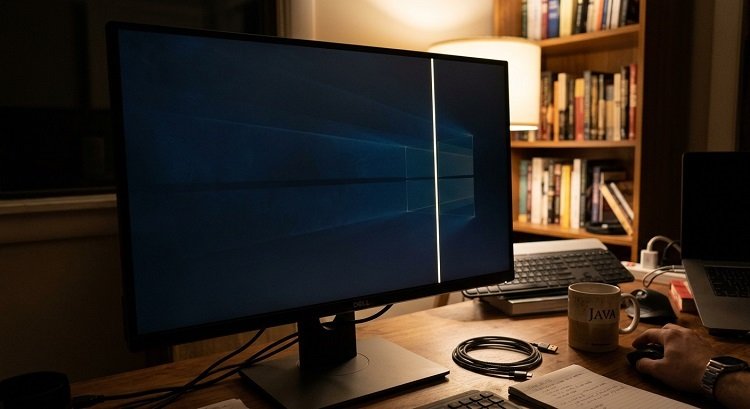
First, Figure Out What Kind of Line You’re Dealing With
Not all screen lines are created equal, and the type of line you see is your first big clue.
Vertical lines typically point to a problem with the display panel itself or the cable connecting it to the rest of the computer. These are common on laptops, where the delicate ribbon cable running from the motherboard to the screen can get pinched or worn out over time, especially if the laptop is opened and closed a lot.
Horizontal lines often suggest an issue with the video card (GPU) or how the display is refreshing its image. They can also show up when a monitor’s internal electronics start to fail.
Flickering or shifting lines — ones that move, change color, or come and go — usually indicate a loose connection or a software/driver conflict rather than a permanently damaged panel.
A single, unmoving colored line that doesn’t disappear even when you shake the cable or restart is more likely a sign of physical damage to the screen itself, such as a cracked panel or damaged pixels in a specific row or column.
Common Hardware Causes
1. A Damaged or Loose Cable
Inside every laptop and monitor, a cable (or ribbon connector) carries the video signal from the computer’s internals to the actual screen. Over years of use — or after a drop, a tight bag, or repeated opening and closing — this cable can loosen or fray. A partially disconnected cable is one of the most common reasons for a persistent line, and it’s often worse when you tilt or move the screen.
2. A Cracked or Pressured LCD Panel
If your screen has taken a hit — dropped, sat on, or squeezed in a backpack with something heavy — the liquid crystal layer underneath the glass can be damaged. This often shows up as a line (or a spreading blotch) at the exact point of impact. Unfortunately, this kind of damage isn’t fixable with software; it usually means the panel itself needs replacing.
3. A Failing Graphics Card (GPU)
Graphics cards handle all the work of rendering what appears on your screen. When a GPU starts to fail — due to age, overheating, or a manufacturing defect — it can send corrupted signals that appear as lines, flickering, or artifacts. This is more common in desktops with dedicated graphics cards, but it can affect integrated GPUs too.
4. Monitor Port or Connector Issues
If you’re using an external monitor, the problem might not be the monitor or the computer at all — it could be the cable connecting them (HDMI, DisplayPort, VGA, etc.) or the port itself. A slightly bent pin or a worn-out cable can easily cause visual glitches like lines.
Common Software Causes
1. Outdated or Corrupted Graphics Drivers
Your graphics driver is the translator between your operating system and your GPU. When it’s out of date, corrupted, or incompatible with a recent update, it can cause visual artifacts including lines, flickering, or color distortion. This is one of the easiest problems to fix and one of the most common.
2. Incorrect Refresh Rate or Resolution Settings
If your screen’s refresh rate or resolution doesn’t match what the display is actually capable of, you may see tearing, flickering lines, or a distorted image. This is especially common after connecting to an external monitor or projector with different specifications.
3. Software Conflicts After an Update
Sometimes a recent operating system or driver update introduces a bug that causes display issues. If the line appeared right after an update, that’s a strong hint the software — not the hardware — is to blame.
How to Narrow It Down Yourself
Before assuming the worst, try these quick diagnostic steps:
- Restart your computer. This sounds obvious, but it resolves a surprising number of temporary software glitches.
- Update your graphics drivers. Check your GPU manufacturer’s website (NVIDIA, AMD, or Intel) for the latest version.
- Connect an external monitor (if you’re on a laptop). If the line disappears on the external screen, the problem is your laptop’s panel or its cable. If the line follows you to the external monitor, it’s likely your GPU or a system-wide software issue.
- Gently wiggle the screen at different angles. If the line flickers or changes as you move the screen, a loose cable is the likely cause.
- Boot into Safe Mode. If the line disappears in Safe Mode, a driver or software conflict is probably responsible.
When to Call in a Professional
If you’ve ruled out software causes and the line persists no matter what you connect or how you adjust the screen, it’s likely a hardware issue — and at that point, it’s worth having a technician take a look, especially if your device is still under warranty. Attempting to open a laptop or monitor yourself can void your warranty and, in some cases, cause further damage if you’re not experienced with internal components.
The Bottom Line
A line on your screen isn’t just annoying — it’s your computer’s way of telling you something specific is wrong, whether that’s a worn cable, a failing panel, or an outdated driver. By paying attention to the type of line, when it appears, and how it behaves, you can usually narrow down the cause before you ever need professional help. And in many cases, especially software-related ones, the fix might be as simple as updating a driver or restarting your machine.
