
If your phone seems to ring nonstop with numbers you don’t recognize, you’re not alone. Robocalls and spam calls have become one of the most common annoyances of owning a smartphone, with billions of unwanted calls placed every month worldwide. The good news is that both iPhone and Android offer built-in tools to silence unknown callers automatically, and there are excellent third-party apps that can take things even further. This guide walks through exactly how to set these features up, so you can finally enjoy some peace and quiet.
What Are Smart Ways to Save Money on Groceries?
What Does “Silence Unknown Callers” Actually Do?
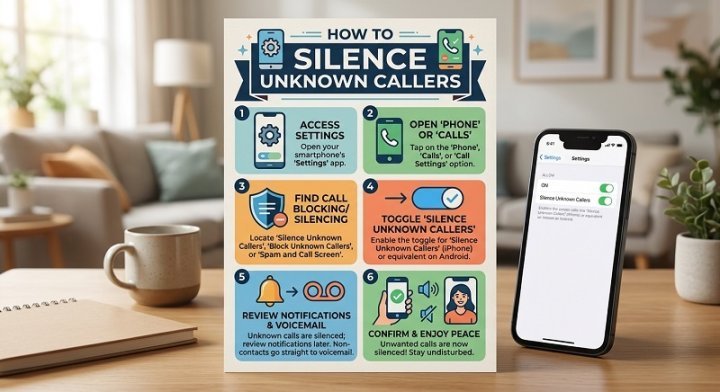
The “Silence Unknown Callers” feature works by comparing incoming calls against your contacts, recent outgoing calls, and, in some cases, Siri suggestions or saved numbers from Mail and Messages. If a call doesn’t match any of these, it’s automatically sent to voicemail instead of ringing your phone. You’ll still see a log of the call and a voicemail if the caller leaves one, but your phone stays silent, and you’re never interrupted by a number you don’t know.
This is especially useful for filtering out robocalls, telemarketers, and scam numbers, which almost never appear in your contacts list. It’s not a perfect system, since some legitimate calls, like a delivery driver or a new client, may also get silenced, but for most people, the trade-off is well worth the reduction in interruptions.
How to Silence Unknown Callers on iPhone
Apple built this feature directly into iOS, and it takes less than a minute to turn on.
Step 1: Open Settings
Unlock your iPhone and tap the Settings app.
Step 2: Go to Phone Settings
Scroll down and tap Phone.
Step 3: Select Silence Unknown Callers
Tap Silence Unknown Callers, then toggle the switch to turn it on.
Once enabled, any call from a number not saved in your contacts, not found in your recent outgoing calls, and not suggested by Siri will be silently routed to voicemail. You’ll still find these calls listed in your Recents tab, so you can call back if needed.
A Few Things to Know
- Calls silenced this way still show up in your call log, marked as “Silenced.”
- Voicemails left by unknown callers still notify you as usual.
- Emergency numbers and numbers you’ve recently texted are typically exempted.
- If you frequently receive important calls from new numbers, such as for business, you may want to leave this feature off or rely on third-party spam-filtering apps instead.
How to Silence Unknown Callers on Android
Android’s approach varies slightly depending on your phone manufacturer, but the core steps are similar across most devices using the Google Phone app.
Step 1: Open the Phone App
Tap the Phone app on your home screen.
Step 2: Access Settings
Tap the three-dot menu icon in the top right corner, then select Settings.
Step 3: Find Caller ID & Spam Protection
Tap Caller ID & spam, then look for an option like Filter spam calls or Silence unknown callers, depending on your Android version.
Step 4: Enable the Feature
Toggle on the relevant setting. On many devices, this will automatically silence calls flagged as likely spam based on Google’s spam database, rather than blocking all unknown numbers outright.
Samsung Devices
If you use a Samsung phone, the process is slightly different:
- Open the Phone app.
- Tap the three-dot menu and select Settings.
- Tap Block numbers and calls.
- Enable Caller ID and spam protection, then choose your preferred filtering level.
Samsung’s system tends to focus more on identifying and blocking known spam numbers rather than silencing everything unknown, so it strikes a slightly different balance than Apple’s approach.
Third-Party Apps That Can Help
If your phone’s built-in tools aren’t cutting it, several apps specialize in call filtering and can offer more granular control:
- Truecaller: One of the most popular spam-blocking apps, using a massive crowdsourced database to identify and block spam numbers before they ring.
- Hiya: Offers real-time caller ID and spam detection, often built into carrier apps like AT&T Call Protect.
- RoboKiller: Uses answer bots to waste scammers’ time while automatically blocking known spam numbers.
- Nomorobo: A well-reviewed option for both mobile phones and landlines, focused specifically on robocall blocking.
Most of these apps offer free tiers with basic protection, along with premium subscriptions for more advanced features like reverse number lookup and call recording.
Additional Tips to Reduce Unknown Calls
Beyond silencing features, there are a few habits that can meaningfully cut down on unwanted calls:
- Register with the Do Not Call Registry. In the U.S., registering your number at donotcall.gov can reduce legitimate telemarketing calls, though it won’t stop illegal scam calls.
- Avoid answering unknown numbers altogether. Scammers often use “ping calls” to confirm your number is active; if you never answer, your number may get flagged as inactive.
- Don’t return missed calls from unfamiliar numbers, especially international ones, as some scams rely on you calling back and racking up charges.
- Report spam calls through your carrier’s app or the FTC’s complaint website to help improve spam databases.
- Regularly update your phone’s software, since manufacturers frequently improve spam detection algorithms in system updates.
Should You Always Silence Unknown Callers?
While this feature is a great tool for cutting down on interruptions, it’s worth considering your specific needs. If you’re job hunting, running a small business, or expecting calls from doctors’ offices, silencing all unknown numbers might cause you to miss something important. In these cases, a smarter approach might be using a dedicated spam-blocking app that filters out only known bad actors, letting other unknown calls through.
Final Thoughts
Silencing unknown callers is one of the easiest and most effective ways to reclaim your peace of mind and stop the endless stream of spam and robocalls. Whether you use your phone’s built-in settings or add a dedicated third-party app, a few minutes of setup can save you countless interruptions down the line. Try enabling the feature today and see how much quieter your phone becomes.
Do you have a go-to method for blocking spam calls? Share your favorite app or setting in the comments below!
